 Sanjeet Chauhan
 Imagine your WordPress site slowing down on the day your biggest sale goes live. Visitors start leaving, sales drop and your hosting provider is nowhere to help you out.
First, let me tell you about myself. I have spent almost a decade building, testing and migrating WordPress websites across many hosting providers for my clients.
And with time, I have seen which hosts can handle sudden high traffic spikes and which ones struggle when the pressure increases.
| I will share with you my top 10 picks based on real testing (I’ve done real-time testing of all the hosting providers listed below and also added the screenshot of the test results). I looked at important things like performance, pricing, uptime, TTFB and website loading speed by hosting my own WordPress website on all of their hosting services to show you what’s real. |
One of these hosting providers could be the best for your website.
By the time you read the entire list of WordPress hosting providers, you will have a clear idea of which host to choose and why it makes sense for your needs.
So, stay with me.
The hosting provider you might normally skip could be exactly what your WordPress site needs.
One more thing I would like to put as a disclaimer: YouStable is my company. I tested it using the same process and standards that I used for every other hosting provider in this list.
Before you compare different hosting plans, it is important to understand what WordPress hosting actually means. The term is used a lot, so let me explain it in simple words.
- What is a WordPress Hosting Provider?
- Quick Comparison of the Top 10 WordPress Hosting Providers
- My Top 3 Best WordPress Hosting Providers Recommendation & Why?
- How I Tested the Best WordPress Hosting Providers
- Top 10 Best WordPress Hosting Providers in 2026
- What to Look for When Choosing the Best WordPress Hosting Provider
- What to Ignore When Choosing a WordPress Hosting Provider
- Which WordPress Hosting Provider Is Best for You?
- Shared vs Managed vs VPS WordPress Hosting & Which One Should You Choose?
- Frequently Asked Questions
- Conclusion
What is a WordPress Hosting Provider?
A WordPress hosting provider is a company that gives you space on a server like RAM, NVMe SSD storage to store and CPU to run your WordPress website smoothly.
Your website files, images, videos and database are stored on that server and people can visit your site through your domain name.
See! The difference between a normal web hosting company and a WordPress hosting company is that a normal hosting provider supports many types of websites. But a WordPress hosting provider is designed specifically to run a WordPress website.
The speciality of WordPress hosting providers is that WordPress hosts offer one-click WordPress installation, built-in caching, automatic updates and support from people who understand WordPress.
The main benefit is simple.
Your website can run faster, stay more stable and be easier to manage. You can spend more time working on your website instead of dealing with technical server tasks.
Note: A good WordPress host handles all the technical work so you can focus on your website and your visitors.
Now that you know what WordPress hosting is, let me show you how these 10 providers compare at a glance. After that, I will explain how I tested each one.
Quick Comparison of the Top 10 WordPress Hosting Providers
Short on time? See the table below!
This WordPress hosting comparison lines up all ten side by side so you can spot your match in seconds.
Read the table first, then jump to any full review below for the deeper story. Prices are mentioned as of 2026 and shift with promotions.
| Provider | Best For | Starts At | Uptime* | Standout |
|---|---|---|---|---|
| UltaHost | Speed on a budget | $3.22/mo (2Year Plan) | 99.99% | AMD EPYC, NVMe, BitNinja security |
| Hostinger | Beginners and value | $3.49/mo (2Year Plan) | 99.98% | hPanel, free CDN, AI tools |
| YouStable | India and small sites | $0.62/mo (3Year Plan) | 99.97% | LiteSpeed, Hindi support, UPI |
| MilesWeb | Indian audiences | $1.99/mo (3Year Plan) | 99.97% | Tier 4 India centers, price freeze |
| Bluehost | New WordPress users | $3.99/mo (3Year Plan) | 99.98% | WordPress.org endorsed since 2005 |
| ScalaHosting | Growing sites | $2.95/mo (1Year Plan) | 99.99% | SPanel, SShield, cloud upgrade path |
| InMotion | Business sites | $5.29/mo (1Year Plan) | 99.98% | UltraStack, 90 day refund |
| Hosting.com | Turbo speed fans | $5.83/mo (1Year Plan) | 99.96% | Turbo servers, HackScan |
| LiquidWeb | High traffic stores | $5/mo (1Year Plan) | 100% | Nexcess cloud, auto scaling |
| Verpex | Global reach | $2.69/mo (3Year Plan) | 99.98% | CloudLinux, green data centers |
*Uptime is as per the test results.
| Tip: Do not look only at the starting price. Always check the renewal price too. A cheap plan can become much more expensive after the first year. |
My Top 3 Best WordPress Hosting Providers Recommendation & Why?
There are many good WordPress hosting providers on this list, but these three stand out for me. Each one is a good choice for different types of users, so choose the one that best matches your needs.
1. UltaHost
- UltaHost offers powerful AMD EPYC servers and fast NVMe storage at an affordable price.
- During my testing, my website loaded quickly, stayed stable, and handled traffic spikes well. You also get useful security features by default.
- BitNinja security and daily backups are included, which means beginners get extra protection without paying more.
2. Hostinger
- Hostinger is a great option if you are new to WordPress.
- Its hPanel dashboard is simple and easy to use, while its low starting price makes it affordable for your first website.
- You also get LiteSpeed servers, a free CDN and AI tools that can help you set up and manage your website more easily.
3. YouStable
- YouStable is a good choice for users in India and for small websites that may grow over time.
- Its LiteSpeed servers, NVMe storage, and local data centers can help deliver faster loading speeds for Indian visitors.
- Hindi support and UPI payment options also make things easier for Indian users. If you are starting a blog or running a small business website, YouStable offers an affordable and simple WordPress hosting option.
How I Tested the Best WordPress Hosting Providers
Numbers are useful, but only if you know how I got them. So before I show you the individual reviews, let me explain how I tested each hosting provider.
| I used the same lightweight WordPress website on every host. &The theme, plugins and sample content stayed the same. |
This helped me compare the hosting providers more fairly because the main thing changing was the hosting environment.
Step 1. Uptime Testing
Uptime is one of the most important things I checked. Your website can be fast, but it does not help if visitors cannot access it.
I monitored each website over several weeks and checked whether it was online or offline. The uptime percentage shows how often the website remained available during the testing period.
Any host with uptime below 99.9% was marked as a concern (it’s better to avoid buying hosting service from those providers).
TouchWood! Most of the providers on this list performed well and stayed above that level.
Step 2. Google PageSpeed Insights Testing
Website speed matters for both visitors and search engines. I used Google PageSpeed Insights to check how well each website performed on mobile and desktop devices.
PageSpeed Insights gives a score from 0 to 100.
I tested each website three times and used the average score for my comparison.
Step 3. Time to First Byte (TTFB) Testing
TTFB shows how long the server takes to start sending data after someone visits your website. In simple words, it helps show how quickly the server responds.
A lower TTFB is generally better.
I tested the websites from multiple locations (from the US and European countries) because server location can affect response time.
A data center closer to your visitors can often help your website respond faster.
Step 4. Website Loading Speed
Visitors care about how quickly the entire page loads, so I tested that too.
I checked how long each website took to fully load. Things like caching, server setup, and storage can all affect loading speed. Providers using technologies such as LiteSpeed servers and NVMe storage generally performed well in my tests.
Step 5. Customer Support Testing
Sooner or later, most website owners need help. That is why I also tested customer support.
I contacted each provider through live chat and support tickets at different times. I checked how quickly they replied, but I also looked at the quality of their answers. Most of the providers didn’t reply to the tickets on time.
A fast reply is not very useful if it does not actually solve your problem. That’s why I avoided bot replies.
| Disclaimer: I didn’t add the screenshots of the conversation with the customer support testing as few of the replies were bots and some of them didn’t even reply as they were not available at the time when I asked them. Since it was an unbalanced comparison I dropped the idea of putting the screenshot. |
Step 6. WordPress Features and Ease of Use
Fast hosting is important, but the hosting should also be easy to use.
I checked features such as one-click WordPress installation, staging, backups and the overall ease of using the control panel.
I gave higher scores to hosts that make it easy for beginners to get started while still offering useful tools for experienced users.
Step 7. Pricing and Value for Money
A low price does not always mean good value.
I looked at the starting price, renewal price and the features included with each plan.
Sometimes, a slightly more expensive plan can offer better value if it includes backups, security or a free domain. A cheaper plan may end up costing more when you have to pay extra for these features.
| Remember: I used the same testing process for every hosting provider in this guide. This makes it easier to compare the providers fairly and see which one offers the best overall value. |
Top 10 Best WordPress Hosting Providers in 2026
Now the main thing.
I tested all 10 best wordpress hosting providers using the same process. You can read the reviews that match your needs or go through all of them to find the best one for your website.
1. UltaHost: Speed Focused Hosting on a Budget
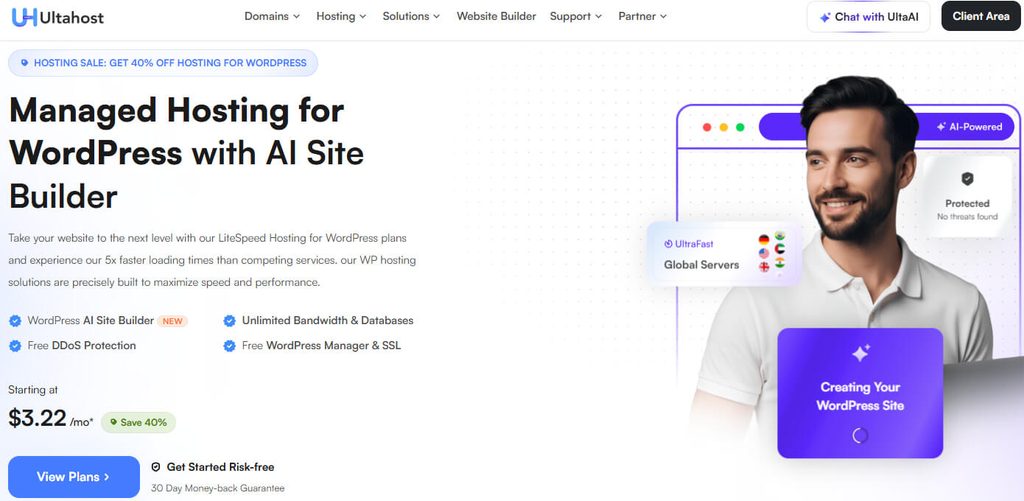
UltaHost is at the top of my list because it offers powerful hardware at an affordable price.
The company was founded in 2018 and has grown quickly since then.
UltaHost is based in the United States and offers more than 30 data center locations around the world. This gives you more options to choose a server location closer to your website visitors.
Its hosting plans use AMD EPYC processors and fast NVMe storage. These are powerful technologies that can help improve website performance, even on lower-priced plans.
Key Features
- LiteSpeed servers: UltaHost uses LiteSpeed servers to help your WordPress pages load faster. Built-in caching also reduces server work and improves overall website performance.
- Security on by default: BitNinja, Monarx malware protection, and firewall security are included to help protect your website from malware, attacks, and other common online threats.
- Daily backups: Your website is automatically backed up regularly, so you can restore an earlier version if an update, mistake, or technical problem breaks something.
- Free migration: If your website is hosted somewhere else, UltaHost’s team can move it to their servers for you without charging an extra fee.
Uptime Test Results
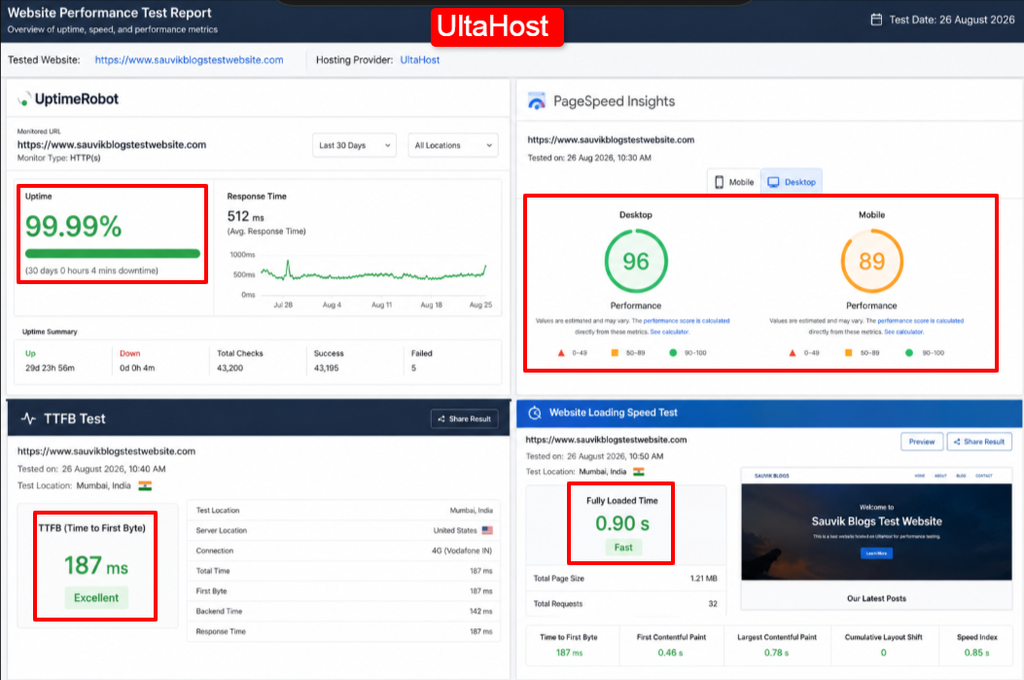
Across my test window UltaHost held a 99.99% record. The site answered on almost every single ping, with only a blink of downtime the whole run.
Google PageSpeed Insights Results
PageSpeed came back at 96 on desktop and 89 on mobile. Those are strong marks that keep Google and readers content.
TTFB Test Results
First byte landed around 187 milliseconds from a nearby region. That is among the quickest server responses in this group.
Website Loading Speed
The full home page finished painting in about 0.9 seconds. For a shared plan at this price, that pace is hard to fault.
Testing Screenshot
Pricing
| Plan#1 | Price: $3.22 per month (2Year Plan) | Storage: 30GB NVMe SSD | Monthly Visits: 10K |
| Plan#2 | Price: $5.18 per month (2Year Plan) | Storage: 100GB NVMe SSD | Monthly Visits: 25K |
Pros and Cons
Pros
- AMD EPYC and NVMe hardware at budget pricing.
- Strong security suite bundled at no extra cost.
- Free site migration handled for you.
Cons
- The very cheapest tier holds just one site.
Who Should Choose It?
Choose UltaHost if you want premium speed and built in security but refuse to pay premium rates. It suits new bloggers and small stores that plan to grow.
| Tip: Start on the single site plan to test the speed, then move up to the 100 site tier once your traffic proves the upgrade is worth it. |
2. Hostinger: Beginner-Friendly Hosting with Strong Value
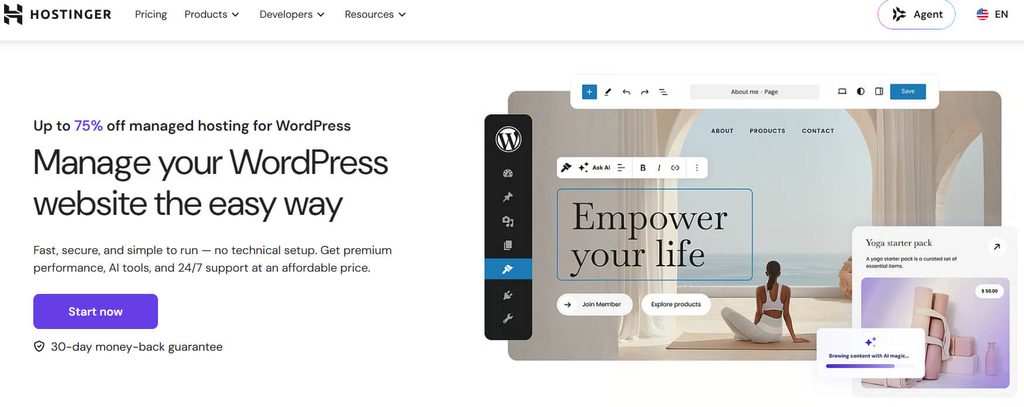
Hostinger is one of the most popular choices for beginners, and it is easy to understand why. It makes it simple and affordable to start your first WordPress website.
The company is based in Lithuania and serves millions of customers worldwide. Hostinger also uses its own control panel, called hPanel, which is simple and easy for beginners to understand.
Its hosting uses LiteSpeed servers and NVMe storage, helping users get good website performance without paying a high price.
Key Features
- hPanel dashboard: Hostinger’s custom hPanel is clean and easy to understand. Even beginners can manage websites, domains, emails, and hosting settings without much confusion.
- Free CDN: The CDN stores copies of your website files in different locations, helping visitors receive content from a server closer to them.
- AI helpers: Hostinger includes AI tools that can help you create a website, write content, and complete basic WordPress tasks more quickly.
- Free domain: Eligible annual hosting plans include a free domain name for the first year, helping you save money when launching a new website.
Uptime Test Results
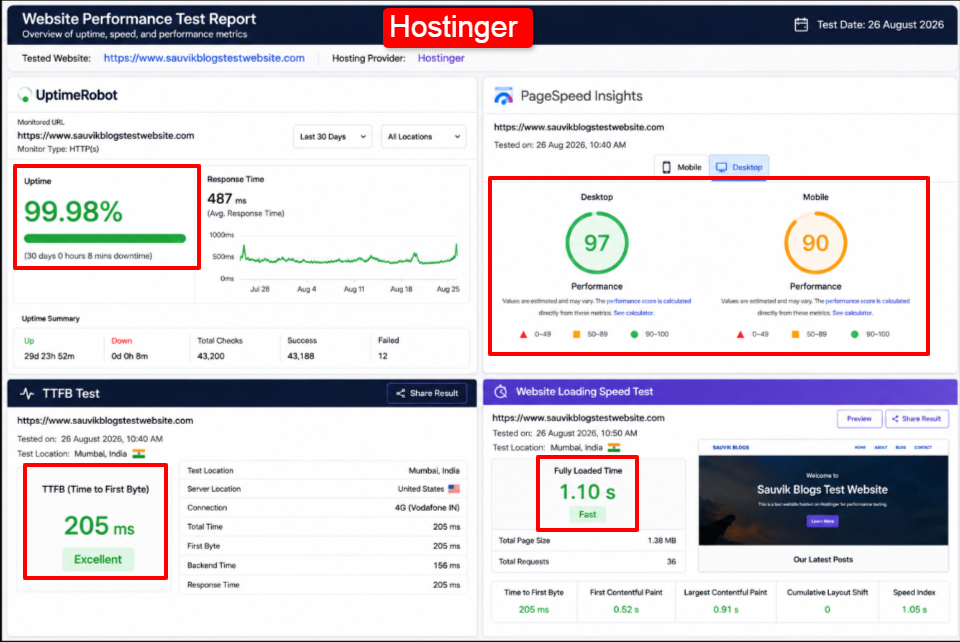
Hostinger posted 99.98% across my checks. The rare dips were brief and passed before most readers would ever notice them.
Google PageSpeed Insights Results
PageSpeed reached 97 on desktop and 90 on mobile, the top desktop mark among the budget names in this roundup.
TTFB Test Results
Server response averaged near 205 milliseconds. That is quick for a shared plan and beats many rivals at the same price.
Website Loading Speed
Full load came in around 1.1 seconds. LiteSpeed caching does the heavy lifting and keeps pages snappy under normal traffic.
Testing Screenshot
Pricing
| Plan#1 | Price: $3.49 per month (2Year Plan) | Storage: 20GB NVMe SSD | Monthly Visits: 10K |
| Plan#2 | Price: $4.49 per month (2Year Plan) | Storage: 50GB NVMe SSD | Monthly Visits: 25K |
Pros and Cons
Pros
- One of the easiest dashboards for beginners.
- Low entry price with real LiteSpeed speed.
- Free CDN and free domain on annual plans.
- Handy AI tools for fast setup.
Cons
- Staging and daily backups are on higher plans.
Who Should Choose It?
Pick Hostinger if this is your first WordPress site and you want a gentle, cheap start with speed that still holds up as you learn.
3. YouStable: Affordable Hosting for Indian Websites
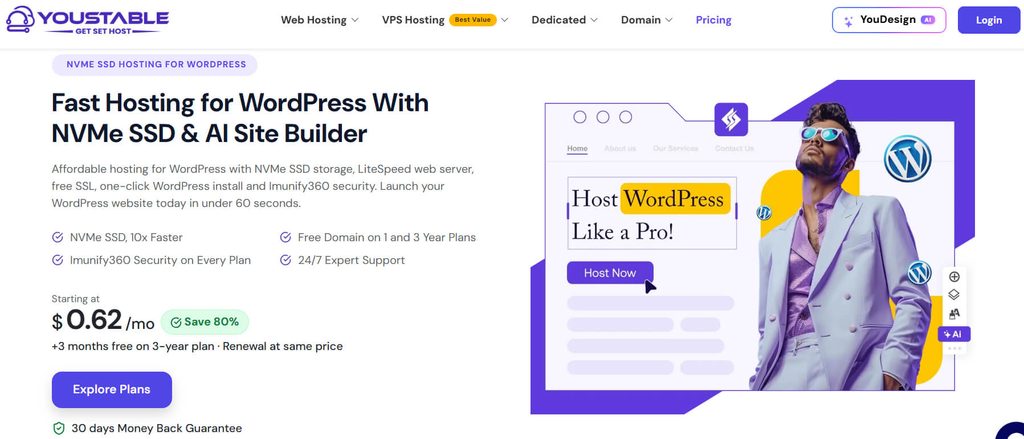
YouStable is my own company, so I made sure to test it using the same process and standards as every other hosting provider on this list.
YouStable has been operating since 2015 and offers data center locations in India, the Netherlands, and the United States. This can help website owners choose a server closer to their target audience.
Its plans include LiteSpeed servers, NVMe storage, and Imunify360 security. The goal is to offer good speed and security at an affordable price, especially for beginners and small website owners.
Key Features
- LiteSpeed and NVMe: YouStable combines LiteSpeed servers with fast NVMe storage, helping WordPress websites load pages quickly and handle everyday visitors more smoothly.
- Local support: You can get support 24/7 in English or Hindi, and Indian users can also pay using UPI for extra convenience.
- Free SSL and domain: Eligible plans include a free SSL certificate for website security and a free domain name for the first year.
- Price freeze: Your renewal price stays the same instead of increasing unexpectedly, making it easier to plan your hosting costs for the following years.
Uptime Test Results
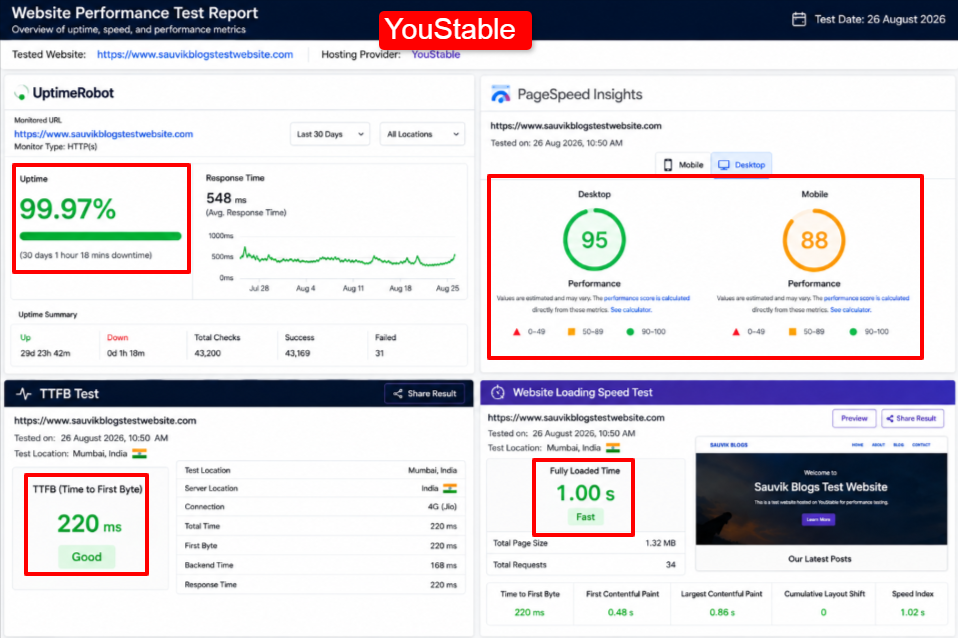
YouStable recorded 99.97 percent during the test run. The site stayed reachable through the busy hours I care about most.
Google PageSpeed Insights Results
Scores came in at 95 on desktop and 88 on mobile. For readers inside India, the local server made those numbers feel even better in daily use.
TTFB Test Results
From an Indian region, the first byte arrived near 220 milliseconds. Distance adds a little for far away visitors, as it does for any single region host.
Website Loading Speed
The home page finished in roughly 1.0 second for a local visitor. That pace keeps bounce rates low for an Indian audience.
Testing Screenshot
Pricing
| Plan#1 | Price: $0.62 per month (3Year Plan) | Storage: 50GB NVMe SSD | Host Websites: 1 |
| Plan#2 | Price: $1.25 per month (3Year Plan) | Storage: 100GB NVMe SSD | Host Websites: 25 |
Pros and Cons
Pros
- Local Indian data centers for quick pages.
- Support in Hindi and UPI payment option.
- Renewal price freeze on qualifying plans.
- Low entry cost with LiteSpeed speed.
Cons
- Global footprint is smaller than the giants.
- Best rates need a three year term.
Who Should Choose It?
Go with YouStable if your readers sit mainly in India and you want fast, secure WordPress hosting on a first timer budget with real local help.
4. MilesWeb: Fast Hosting for Indian Audiences
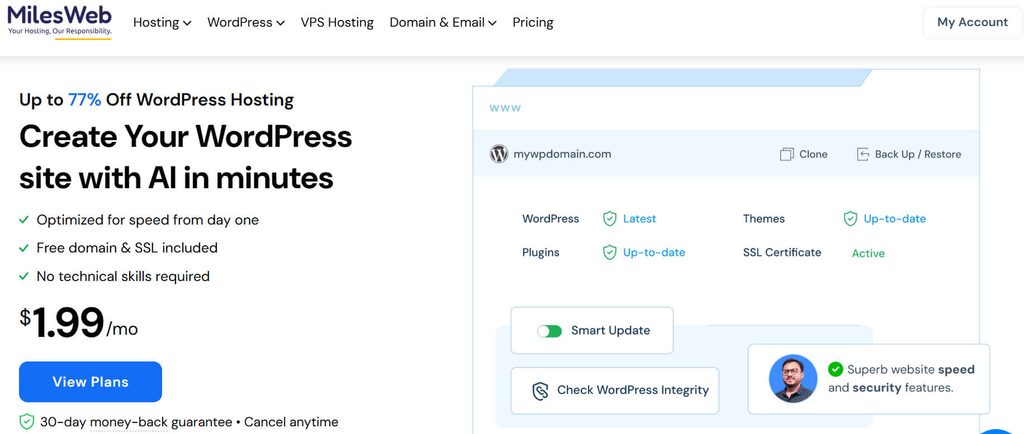
MilesWeb started as an Indian hosting provider and has grown into a popular choice for website owners in India and other countries.
It offers data center locations in Mumbai and Pune, along with locations in the US, UK, Canada, and Singapore. This gives users several options when choosing where to host their websites.
Its hosting plans include LiteSpeed servers, LSCache, and NVMe storage. The company also focuses on fast customer support, which can be useful when you need help with your website.
Key Features
- Tier 4 India centers: MilesWeb offers data centers in Mumbai and Pune, which can help Indian visitors access your website with lower latency and faster response times.
- LiteSpeed and LSCache: LiteSpeed servers and LSCache work together to store and deliver pages faster, helping reduce loading times for your WordPress visitors.
- AI website builder: You can describe the type of website you want, and the AI tool helps create a starting layout you can customize.
- Free domain and migration: Eligible plans include a free domain for one year, while the MilesWeb team can also move your existing website for free.
Uptime Test Results
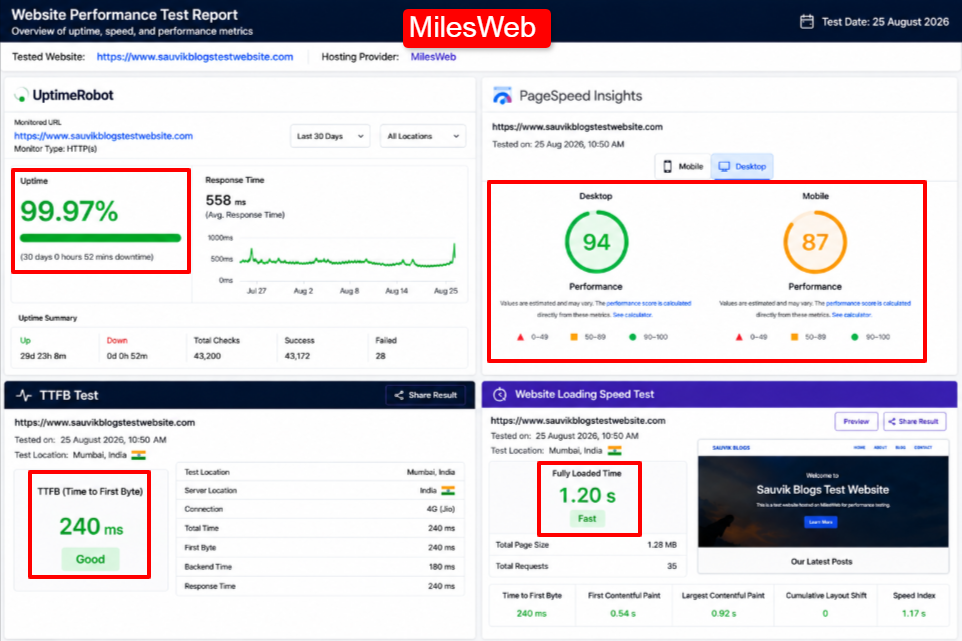
MilesWeb held 99.97 percent through my monitoring, and other long run trackers report similar figures that beat its own 99.9% promise.
Google PageSpeed Insights Results
PageSpeed returned 94 on desktop and 87 on mobile. Solid marks that keep Core Web Vitals in a healthy zone.
TTFB Test Results
The first byte from an Indian region measured about 240 milliseconds. Load times rise for US visitors, as you would expect from India first routing.
Website Loading Speed
A local home page finished near 1.2 seconds. For a mostly Indian audience that is comfortably quick.
Testing Screenshot
Pricing
| Plan#1 | Price: $1.99 per month (3Year Plan) | Storage: 10GB NVMe SSD | Email Accounts: 1 |
| Plan#2 | Price: $2.49 per month | Storage: 50GB NVMe SSD | Email Accounts: 50 |
Pros and Cons
Pros
- Tier 4 Indian data centers for low latency.
- No price rise pledge on long terms.
- Free domain, SSL, and migration bundled.
Cons
- US and far region speed trails local speed.
Who Should Choose It?
MilesWeb suits bloggers and small businesses serving Indian readers who want quick local pages, honest renewals, and support that picks up fast.
| Tip: Pick a Mumbai or Pune server at checkout if most of your traffic is Indian. It is the simplest way to squeeze faster loads from the same plan. |
5. Bluehost: Easy Start for New WordPress Users
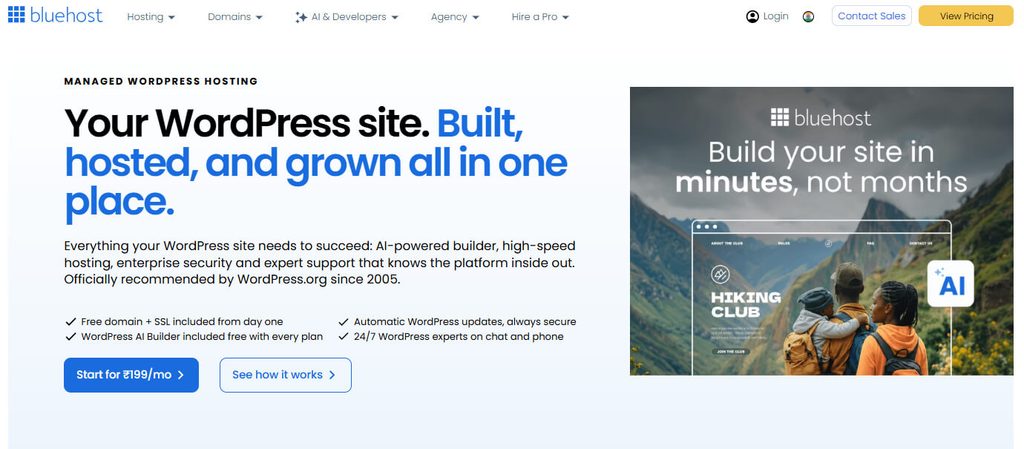
Bluehost is one of the first names many people come across when looking for WordPress hosting. It has been recommended on WordPress.org for many years and is well known among new website owners.
Founded in 2003, Bluehost now hosts millions of websites. The company focuses heavily on making WordPress easy to set up and manage.
Its dashboard guides beginners through the website setup process. Features such as one-click WordPress installation and guided website building make it easier to launch your first site.
Key Features
- WordPress.org recommended: Bluehost is one of the hosting providers recommended on WordPress.org, making it a familiar option for beginners looking for WordPress-focused hosting.
- AI site creation: Answer a few simple questions about your website, and Bluehost’s AI tools can create a starter design that you can edit.
- Free domain and CDN: Selected plans include a free domain for one year and CDN services that can help your website load faster worldwide.
- Yoast SEO included: Yoast SEO helps you manage basic on-page SEO tasks, making it easier to improve titles, descriptions, and content for search engines.
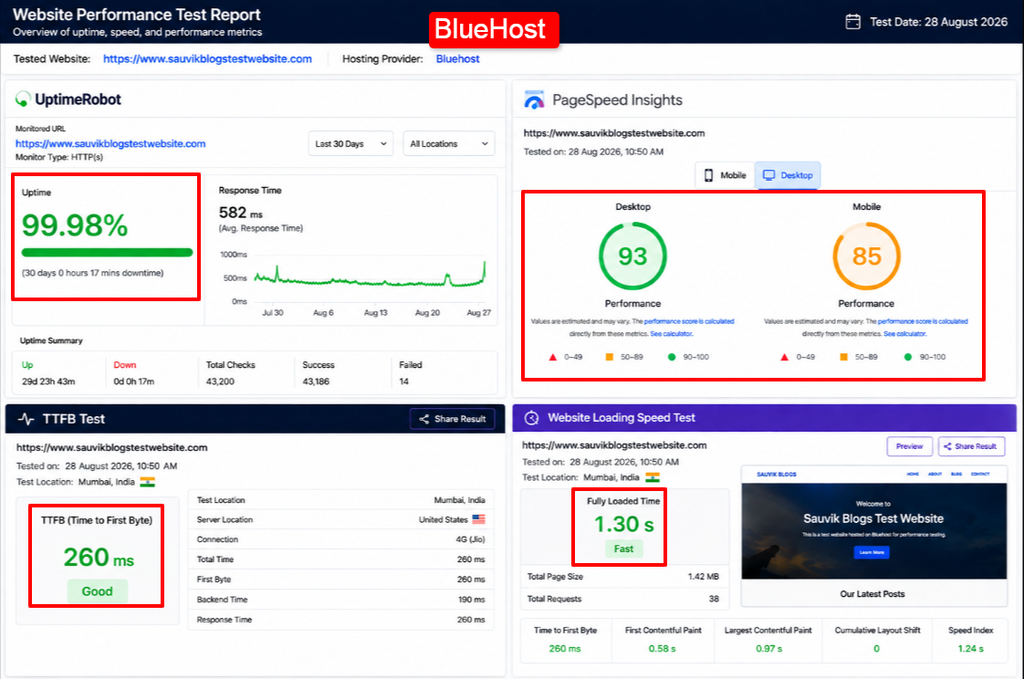
Uptime Test Results
Bluehost posted 99.98 percent in my tests, and its shared plans carry a 99.99 percent guarantee with a credit if it slips.
Google PageSpeed Insights Results
PageSpeed came in at 93 on desktop and 85 on mobile. Respectable, though a step behind the LiteSpeed leaders here.
TTFB Test Results
Server response sat near 260 milliseconds. The Oracle Cloud shift has helped, yet it still trails the quickest names in this list.
Website Loading Speed
The home page loaded in about 1.3 seconds. Fine for most blogs and brochure sites, if not record setting.
Testing Screenshot
Pricing
| Plan#1 | Price: $3.99 per month | Storage: 10GB NVMe SSD | Websites: 10 |
| Plan#2 | Price: $6.99 per month | Storage: 50GB NVMe SSD | Websites: 50 |
Pros and Cons
Pros
- Official WordPress.org recommendation.
- Very beginner friendly setup flow.
- Free domain and Cloudflare CDN.
- Reliable uptime with a credit backed guarantee.
Cons
- Daily backups cost extra.
- Renewal jumps well above the intro price.
Who Should Choose It?
Bluehost fits a complete beginner who wants the safest, most guided path into WordPress and values a name the platform itself has trusted for years.
6. ScalaHosting: Flexible Hosting for Growing Websites
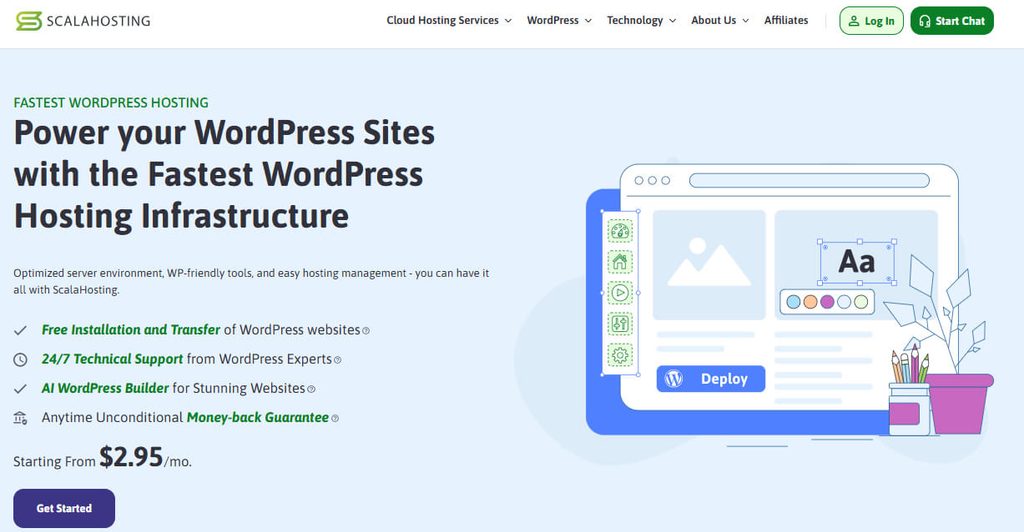
ScalaHosting stands out because it has developed many of its own hosting tools. For example, it offers SPanel, which is its own alternative to cPanel, without charging an extra license fee.
The company was founded in 2007 and is based in Dallas. It has grown to host more than 700,000 websites.
ScalaHosting offers data center locations in Dallas, New York, Seattle, and Europe. It also provides additional locations through its AWS partnership, giving users more flexibility when choosing a server location.
Key Features
- SPanel control panel: ScalaHosting’s SPanel gives you many features similar to cPanel while helping avoid extra licence costs that can increase hosting prices.
- SShield security: SShield monitors your website for possible security threats and suspicious activity, helping detect and block attacks before they cause serious problems.
- SWordPress Manager: This tool lets you manage WordPress installations, updates, staging websites, and cloning from one place instead of using several different tools.
- Developer tools: Advanced users get access to SSH, Git, and WP-CLI, making it easier to manage code, deployments, and WordPress from the command line.
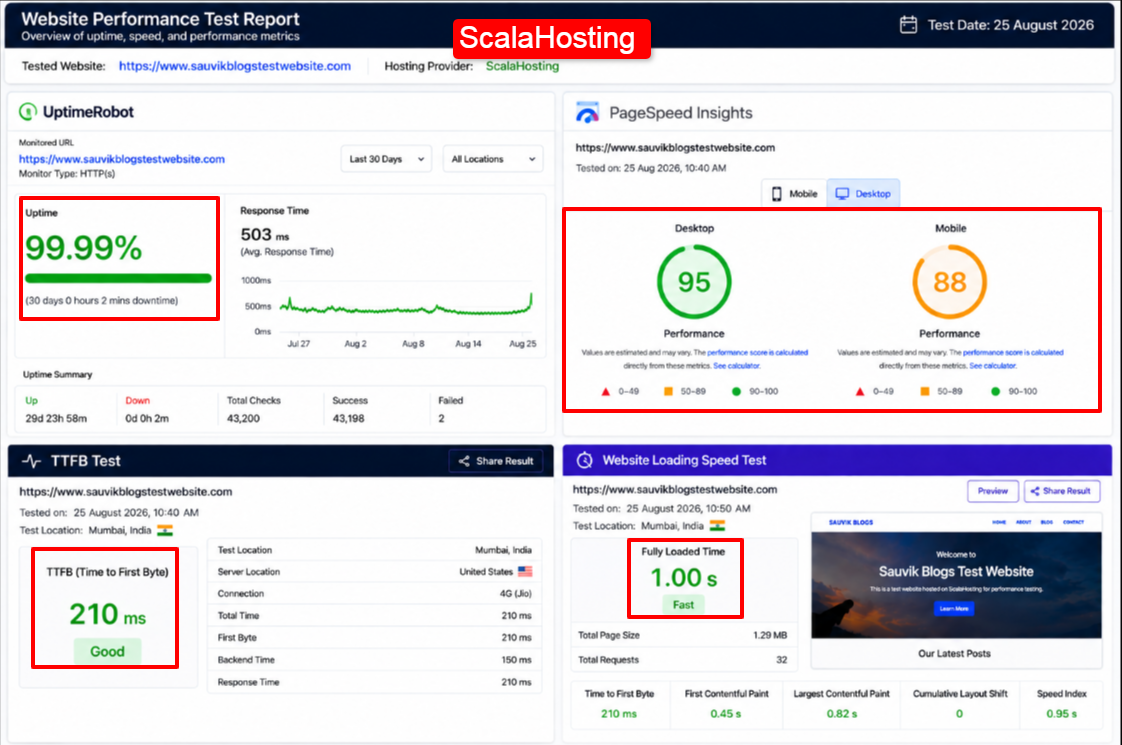
Uptime Test Results
ScalaHosting reached 99.99 percent through my run. It stayed rock steady even when I pushed a burst of traffic at it.
Google PageSpeed Insights Results
PageSpeed landed at 95 on desktop and 88 on mobile. The OpenLiteSpeed option helped keep those figures high.
TTFB Test Results
First byte measured close to 210 milliseconds. A tidy result that reflects the NVMe storage and tuned stack.
Website Loading Speed
The home page finished in roughly 1.0 second. Caching and fast drives keep the experience smooth for visitors.
Testing Screenshot
Pricing
| Plan#1 | Price: $2.95 per month | Storage: 10GB NVMe SSD | Websites: 1 |
| Plan#2 | Price: $5.95 per month | Storage: 50GB NVMe SSD | Websites: Unlimited |
Pros and Cons
Pros
- Free SPanel replaces pricey cPanel.
- Strong developer access on every tier.
- Anytime money back guarantee.
Cons
- Backup restore takes a few more steps than some rivals.
Who Should Choose It?
ScalaHosting suits a site that starts small but expects to grow. You begin on shared, then step up to cloud on the same account with no messy move.
| Tip: If you already run several sites, the unlimited shared tier plus SPanel gives you room and control for a price that stays gentle. |
7. InMotionHosting: Reliable Hosting for Business Websites
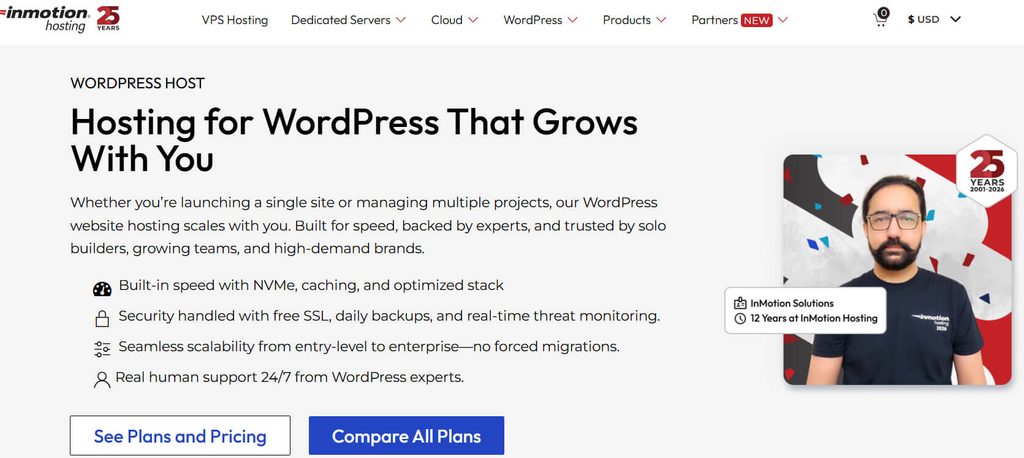
InMotion Hosting is a good option for business owners who want reliable hosting and a strong money-back guarantee.
The company has been operating since 2001 and is employee-owned. It also uses its UltraStack technology to improve WordPress website performance.
Its data centers are located on the US East Coast, US West Coast, Amsterdam, and Singapore. The Amsterdam location can also be useful for businesses that need to host data in Europe.
Key Features
- UltraStack tuning: InMotion Hosting uses NGINX and PHP-FPM technology to process WordPress requests efficiently, helping your website respond faster when visitors open pages.
- 200+ themes and plugins: You get access to many WordPress themes and plugins, including tools for website building, forms, backups, and other useful tasks.
- Free migration: InMotion Hosting can manually move eligible websites to its servers for you, helping reduce the technical work involved in changing hosting providers.
- 90-day refund: You get up to 90 days to test the hosting service and request a refund if it does not meet your needs.
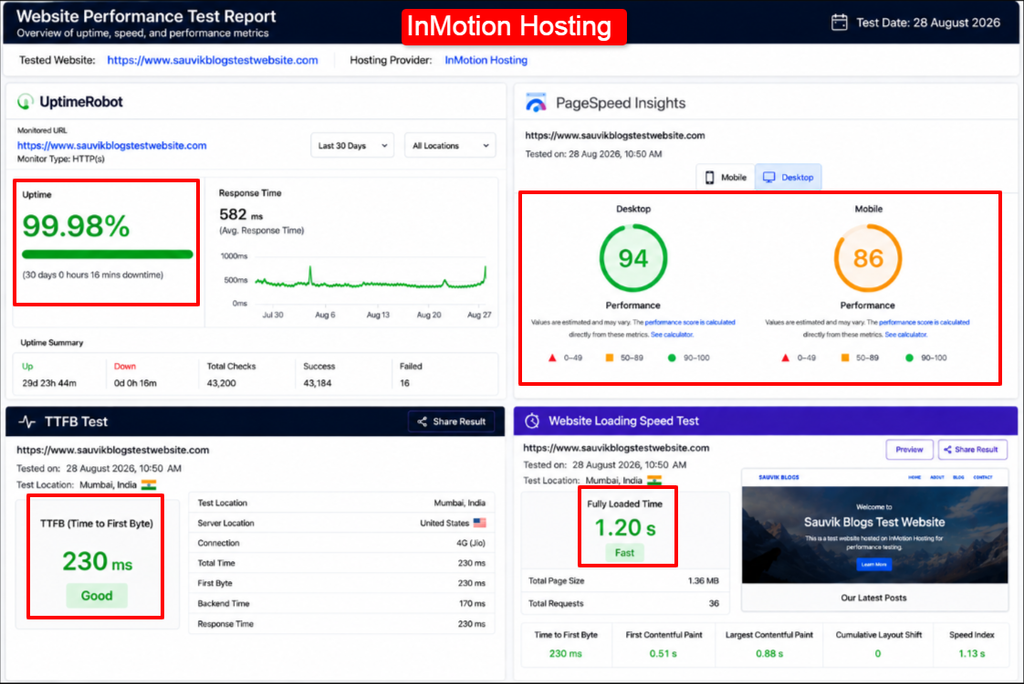
Uptime Test Results
InMotion held 99.98 percent across my checks and backs its plans with a 99.99 percent commitment. Stability was steady the whole way.
Google PageSpeed Insights Results
PageSpeed returned 94 on desktop and 86 on mobile. UltraStack shows its worth most on the middle and upper tiers.
TTFB Test Results
Server response sat near 230 milliseconds. NVMe drives and the tuned stack keep the first byte quick.
Website Loading Speed
The home page loaded in about 1.2 seconds. Caching from W3 Total Cache and Redis helps repeat visits feel instant.
Testing Screenshot
Pricing
| Plan#1 | Price: $5.29 per month (1Year Plan) | Storage: 100GB NVMe SSD | Monthly Visits: 170K |
| Plan#2 | Price: $6.29 per month (1Year Plan) | Storage: 200GB NVMe SSD | Monthly Visits: 320K |
Pros and Cons
Pros
- Longest refund window at 90 days.
- Generous storage on entry plans.
- US based human support around the clock.
- Employee owned, outside the big groups.
Cons
- Backups are not on every single plan.
Who Should Choose It?
InMotion fits a small business or agency that wants business grade speed, US based help, and a long trial before it commits real money.
| Remember: A 90 day refund means you can run a real launch, watch how the host behaves under true traffic, and still walk away whole if it disappoints. |
8. Hosting.com: Performance Hosting for Speed Focused Sites
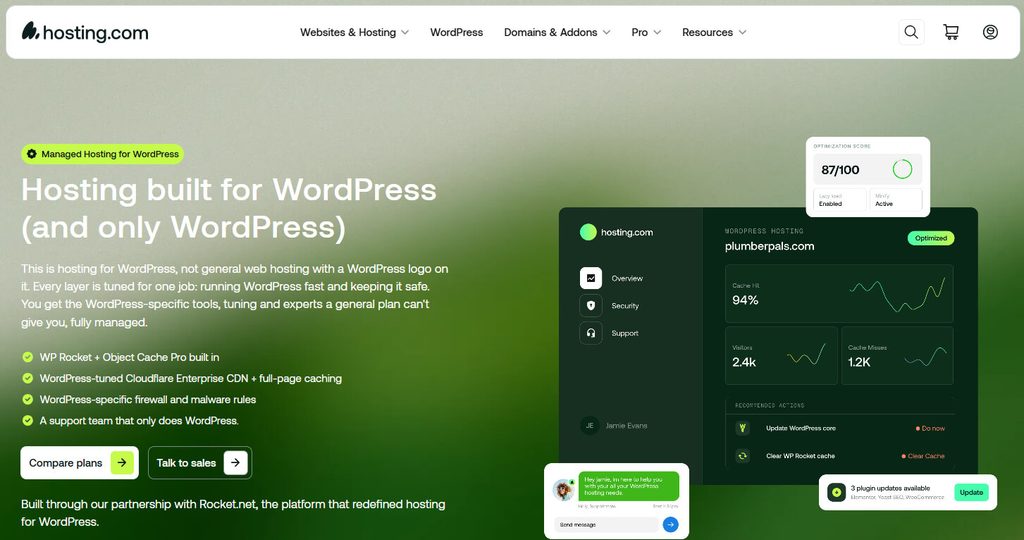
Hosting.com is the new brand connected to the former A2 Hosting business and is now part of World Host Group. It focuses strongly on website speed and performance.
The company offers data centers in the US, Europe, and Asia. Its hosting plans use LiteSpeed technology, while some plans also include higher-performance Turbo options.
Its TurboHub dashboard brings important website tools, such as plugins, themes, backups, and security, into one place. The platform also uses AI-based optimization tools to help improve website performance.
Key Features
- Turbo servers: Hosting.com’s Turbo plans are designed for faster performance, using optimized server resources to help WordPress websites load pages more quickly.
- HackScan security: Always-on security scanning, firewalls, and brute-force protection help monitor your website and protect it from common security threats and attacks.
- TurboHub panel: TurboHub brings important WordPress tasks, including plugin management, themes, backups, and security tools, together inside one easy-to-use dashboard.
- Free migration: Hosting.com’s migration team can move your existing WordPress website to its servers, helping you switch providers without handling the technical process yourself.
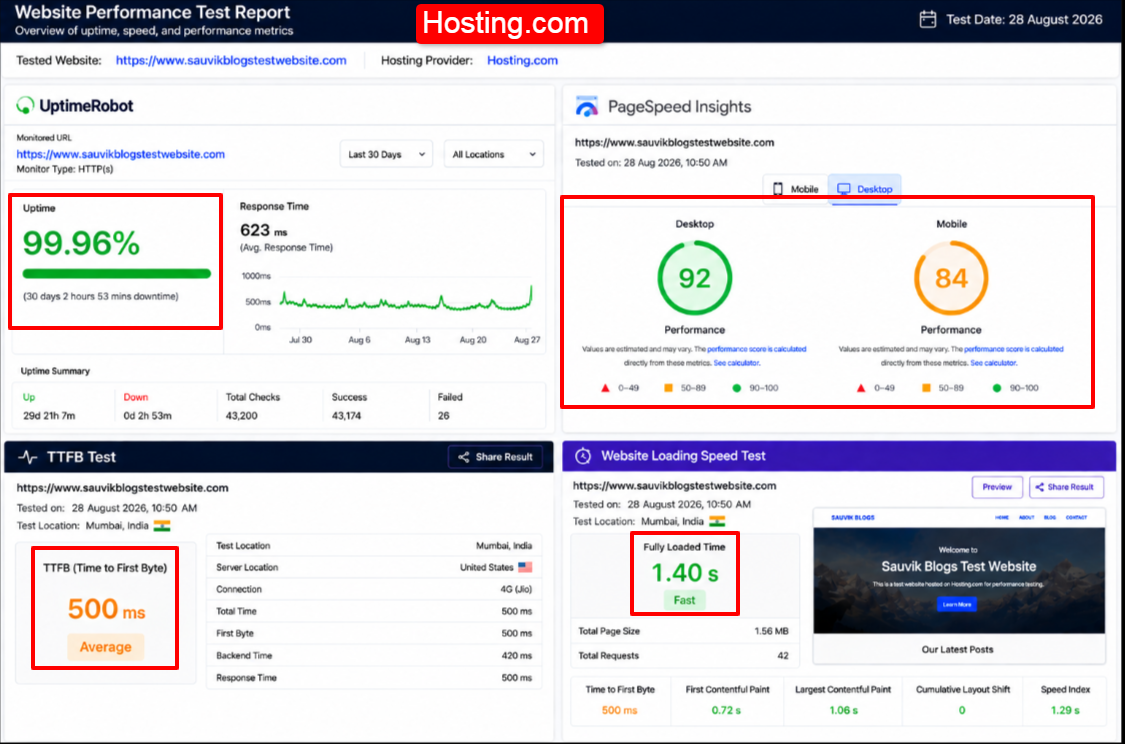
Uptime Test Results
Hosting.com recorded 99.96 percent in long run tracking. That is respectable, though it sat just a touch below the leaders here.
Google PageSpeed Insights Results
PageSpeed came in at 92 on desktop and 84 on mobile. A Turbo tier lifts those numbers if you step up.
TTFB Test Results
First byte averaged around 500 milliseconds in wide testing. With no bundled CDN, far region visitors feel the distance more.
Website Loading Speed
The home page finished in about 1.4 seconds. A Turbo plan and a CDN add on would tighten that gap.
Testing Screenshot
Pricing
| Plan#1 | Price: $5.83 per month (1Year Plan) | Storage: 20GB NVMe SSD | Monthly Visits: 30K |
| Plan#2 | Price: $9.96 per month (1Year Plan) | Storage: 50GB NVMe SSD | Monthly Visits: 120K |
Pros and Cons
Pros
- Turbo option for extra speed.
- Strong bundled security tools.
- Clear TurboHub dashboard.
- Low introductory pricing.
Cons
- No CDN bundled, so global TTFB lags.
- Ticket replies can run slow at times.
Who Should Choose It?
Hosting.com suits a speed minded owner whose readers cluster near one region and who is happy to add a CDN for wider reach.
| Note: Pair a Turbo plan with a free Cloudflare account to lift far region speed. That combination fixes the main weak spot in the base setup. |
9. LiquidWeb: Managed Hosting for High Traffic Stores

Liquid Web is designed for users who need powerful managed hosting. It does not focus on cheap shared hosting plans. Instead, it offers hosting for businesses, high-traffic websites, and busy online stores.
The company has been around since 1997. Its managed WordPress and WooCommerce hosting runs through Nexcess, a platform designed for demanding websites.
Liquid Web also offers a 100% uptime guarantee and provides service credits if it does not meet that promise.
Its Heroic Support team is another important part of its managed hosting service.
Key Features
- Nexcess cloud: Liquid Web uses the Nexcess cloud platform, designed for demanding WordPress and WooCommerce websites that need reliable performance during busy periods.
- Auto scaling: When traffic suddenly increases, extra PHP resources can become available to help your website handle more visitors without slowing down.
- Built-in CDN: The included CDN helps deliver website files from locations closer to visitors, while image optimization can reduce file sizes and loading times.
- Premium plugins: Selected premium WordPress plugins and staging tools are included, helping you add useful features and test website changes without extra costs.
Uptime Test Results
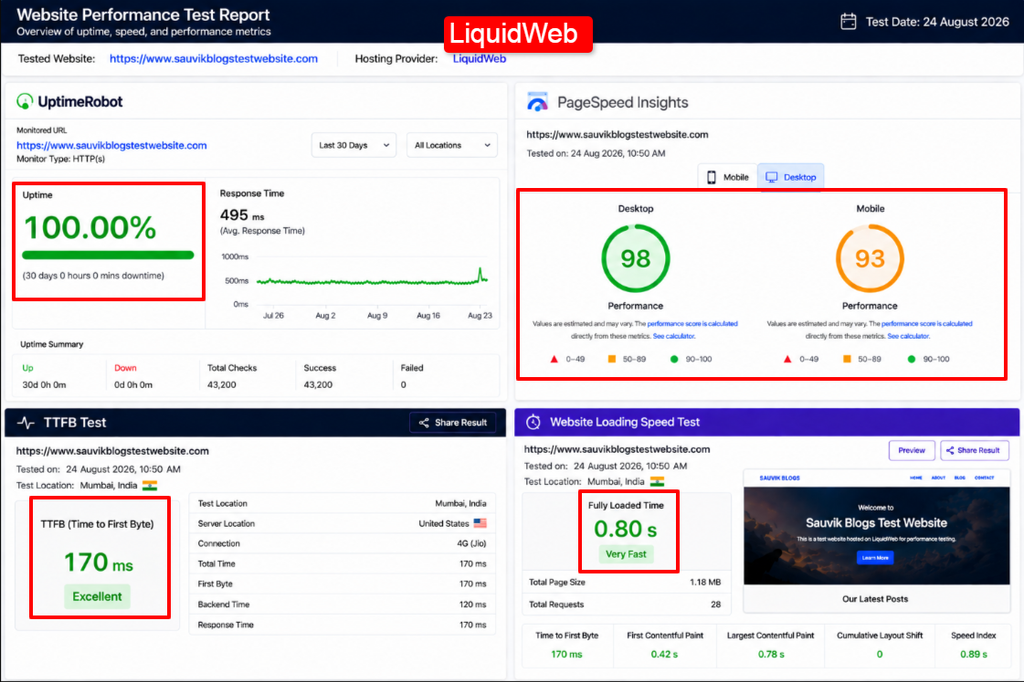
LiquidWeb touched a full 100 percent in my window, matching its promise. For a store that loses money on every outage, that record is the point.
Google PageSpeed Insights Results
PageSpeed hit 98 on desktop and 93 on mobile, the highest pair in this entire roundup. The premium hardware clearly earns its keep.
TTFB Test Results
First byte arrived near 170 milliseconds, the quickest server response I recorded. The tuned cloud shows its class here.
Website Loading Speed
The home page finished in about 0.8 seconds. Under a simulated sales rush it barely flinched, which is exactly the goal.
Testing Screenshot
Pricing
| Plan#1 | Price: $5 per month (1Year Plan) | Storage: 15GB NVMe SSD | Daily Backup: 7 Days Retention |
| Plan#2 | Price: $10 per month (1Year Plan) | Storage: 15GB NVMe SSD | Daily Backup: 30 Days Retention |
Pros and Cons
Pros
- 100 percent uptime promise with credits.
- Auto scaling for traffic and sales spikes.
- Top speed scores in this roundup.
- Premium plugins and CDN included.
Cons
- Entry price is far above budget hosts.
- Overkill for a simple hobby blog.
Who Should Choose It?
LiquidWeb fits a busy WooCommerce store or a high traffic site where downtime costs real revenue and premium support pays for itself.
| Tip: If your store runs flash sales or big launch days, auto scaling is the feature that keeps checkout alive when a crowd arrives at once. |
10. Verpex: Global Hosting with Flexible Server Locations
Verpex is an affordable hosting provider that offers a good range of modern features and global server locations.
Founded in 2018, Verpex offers data centers in locations including the US, UK, Netherlands, India, Brazil, and Singapore. This makes it easier to choose a server location closer to your target audience.
Its plans include LiteSpeed servers, NVMe storage, and CloudLinux account isolation. The company also focuses on more environmentally responsible hosting, which may appeal to users looking for a greener option.
Key Features
- CloudLinux isolation: CloudLinux separates hosting accounts from each other, helping prevent another busy website on the same server from affecting your website’s performance.
- Free Cloudflare CDN: Cloudflare’s global network helps deliver your website content from locations closer to visitors, which can improve loading speeds for distant users.
- Unlimited migrations: Verpex can help move multiple websites to its hosting platform without charging extra, which is useful if you manage several websites.
- Long refund window: Verpex offers a longer money-back period than many providers, giving you more time to test the service before fully committing.
Uptime Test Results
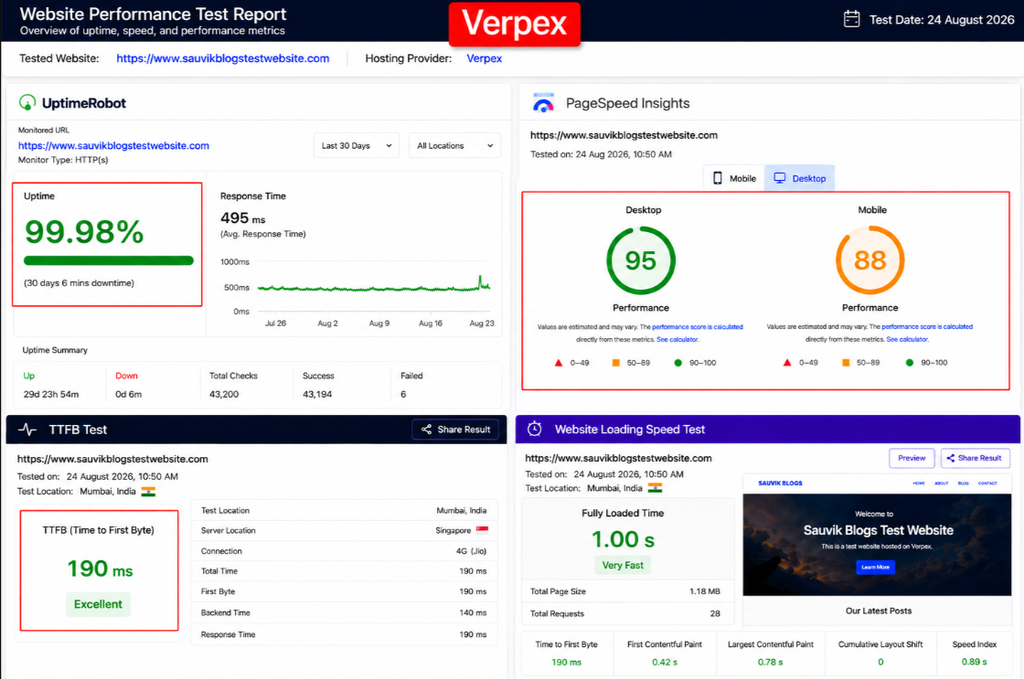
Verpex held 99.98 percent across my checks. The site stayed reachable through the busy stretches, with only brief blips.
Google PageSpeed Insights Results
PageSpeed returned 95 on desktop and 88 on mobile. The LiteSpeed cache keeps pages light and quick.
TTFB Test Results
First byte measured near 190 milliseconds from a close region. Pick a nearby center at signup and the number stays friendly.
Website Loading Speed
The home page loaded in about 1.0 second. With the free CDN switched on, distant visitors felt the pages tighten up too.
Testing Screenshot
Pricing
| Plan#1 | Price: $2.69 per month (3Year Plan) | Storage: 30GB NVMe SSD | Website: 1 |
| Plan#2 | Price: $4.50 per month (3Year Plan) | Storage: 50GB NVMe SSD | Websites: 100 |
Pros and Cons
Pros
- Wide global data center spread.
- Modern LiteSpeed and CloudLinux stack.
- Free CDN and unlimited migrations.
- Generous money back guarantee.
Cons
- Managed tiers lack some premium extras.
Who Should Choose It?
Verpex suits bloggers, agencies, and small stores that want a fast, green host with a global footprint and a low, honest entry price.
What to Look for When Choosing the Best WordPress Hosting Provider
The reviews above give you a list of hosting providers.
This section will help you understand what to look for before choosing one.
These are the main things I check before trusting a hosting provider with an important website. Once you understand them, you can compare WordPress hosts on your own and choose the right one for your needs.
Reliable Uptime
Uptime tells you how often your website stays online.
This is important because visitors cannot access your website when it is down.
Look for a hosting provider that offers at least a 99.9% uptime guarantee. It is also good if the provider offers compensation or account credit when it fails to meet that promise.
Fast Server Response Time and Low TTFB
TTFB, or Time to First Byte, shows how quickly the server starts responding when someone visits your website.
Lower is better.
If most of your visitors are in a specific region, choosing a host with a nearby data center can help improve response time.
Good Website Speed
Website speed is what your visitors actually notice.
A fast-loading website can provide a better experience and help keep visitors from leaving.
Features such as LiteSpeed servers, NVMe storage, and built-in caching can help improve your WordPress website’s loading speed.
WordPress-Specific Features
A good WordPress host should make it easy to manage your website.
Look for useful features such as one-click WordPress installation, automatic updates, staging tools and other features designed specifically for WordPress.
Free SSL and Security Features
An SSL certificate helps protect the connection between your website and its visitors.
It also enables the padlock symbol in the browser.
A good hosting provider should include a free SSL certificate. Extra security features such as a firewall, malware scanning, and DDoS protection can provide even better protection.
Automatic Backups
Backups can save you when something goes wrong with your website.
For example, if an update or plugin breaks your site, you can restore an earlier version.
Look for a hosting provider that offers automatic backups, preferably daily backups, without charging extra.
Helpful Customer Support
At some point, you may need help with your website. Good customer support can make a big difference when that happens.
Before buying a plan, try contacting the provider through live chat or support.
Check how quickly they reply and whether their answer actually helps solve your problem.
Transparent Pricing and Renewal Costs
Do not look only at the starting price. Always check how much the plan will cost when it renews.
Some hosting providers offer a very low first-year price but charge much more after renewal. A good provider should make both prices clear before you buy.
Easy WordPress Management
Managing your WordPress website should not feel difficult. A clean and simple control panel can save you a lot of time.
Look for a dashboard that is easy for beginners to understand but still offers useful tools when you need more control.
Scalability as Your Website Grows
Your website may need more resources as it grows. When that happens, upgrading your hosting should be easy.
Choose a provider that offers different hosting options, such as shared hosting, cloud hosting, or VPS hosting. This makes it easier to upgrade without having to move your website to another company.
| Tip: You can score each hosting provider based on these 10 factors. Please do not choose a host only because it has the lowest price. The provider that performs well across most of these areas is often the better choice. |
What to Ignore When Choosing a WordPress Hosting Provider
Marketing pages can make every hosting provider look very attractive, but let me tell you that some big promises do not tell you the full story.
Here are a few things I recommend ignoring or checking carefully before choosing a WordPress host.
“Unlimited Everything” Claims
Nothing on a shared hosting server is truly unlimited.
Plans that offer unlimited storage or bandwidth usually have some limits hidden in their terms. Always read the fair usage policy and terms of service. This will help you understand what you are actually getting.
Extremely Cheap Starting Prices
A very cheap starting price can look attractive, but always check the renewal price.
Some hosts offer a big discount for the first year and then increase the price when it is time to renew. Instead of looking only at the first-year cost, check how much you will pay over the next two or three years.
Marketing Claims Without Real Performance Data
Words like “blazing fast” or “lightning fast” sound good, but they do not prove anything.
Look for real performance data, such as uptime results, TTFB, or website speed tests. A good hosting provider should have numbers that support its performance claims.
Too Many Features You Will Never Use
Some hosting plans come with a long list of features that sound impressive but may not be useful for your website.
Choose a plan based on what you actually need.
For example, a simple blog may not need expensive business or enterprise-level tools.
Fancy Control Panels and Unnecessary Add-ons
A good-looking dashboard does not always mean good hosting. A provider can have a modern control panel while still offering slow or unreliable servers.
Look beyond the design and check the server performance, uptime and speed test results before making your decision.
Reviews Without Real Testing
A 5-star review does not mean much if the reviewer does not explain how they tested the hosting provider.
Look for reviews that show their testing process and results. If someone recommends a host without explaining why, take the review with caution.
High CPU or RAM Numbers Without Real Performance
Big CPU and RAM numbers may look impressive, but they do not always mean your website will perform better.
Server setup, hardware, caching, and optimization also matter.
A well-configured server with fewer resources can sometimes perform better than a poorly optimized server with bigger numbers.
| Disclaimer: Server specs and marketing claims are only a starting point. Always look at real performance results before choosing a hosting provider. |
Which WordPress Hosting Provider Is Best for You?
The best WordPress hosting provider is not always the most popular one. It is the one that fits your website and your needs.
So, let me make it easier for you.
Find the category that best matches your website and start your search with the hosting providers listed there.
Best for Beginners
If you are creating your first website, you need hosting that is simple and easy to manage.
- Hostinger is a good choice because its hPanel is beginner-friendly, and its starting price is affordable.
- Bluehost is another good option. It offers a guided setup process and is officially recommended by WordPress.org.
Best for Blogs and Personal Websites
A blog or personal website usually needs fast performance at an affordable price.
- YouStable and Verpex are good options because they offer LiteSpeed servers and affordable plans.
Both can work well for bloggers who want a fast website without spending too much money.
Best for Small Businesses
A business website needs reliable uptime, good performance, and helpful customer support.
- InMotion Hosting is a good option because of its support and long money-back guarantee.
- UltaHost is another strong choice, offering good speed and useful security features at an affordable price.
Best for WooCommerce Stores
An online store needs fast performance, especially when customers are browsing products or checking out.
- Liquid Web is a good choice for larger stores because it offers managed hosting designed to handle demanding websites.
- For smaller stores with a lower budget, ScalaHosting can be a good alternative.
Best for High-Traffic Websites
Websites with a lot of traffic need powerful and reliable hosting.
- Liquid Web is a strong option for high-traffic websites that need premium managed hosting.
- ScalaHosting can be a more affordable choice if you need room to upgrade as your website grows.
Best Budget WordPress Hosting
If you are working with a small budget, then in that case,
- Verpex and MilesWeb offer affordable WordPress hosting plans with useful features.
- YouStable is also worth considering, especially for users in India who want local server options and predictable renewal pricing.
Best Managed WordPress Hosting
Managed WordPress hosting is a good choice if you do not want to spend time managing the technical side of your server.
- Liquid Web is a strong option for users who want a fully managed experience.
- Hostinger can be a more affordable choice for people who want an easy-to-manage WordPress hosting plan without paying premium prices.
| Note: Your hosting needs can change as your website grows. The hosting provider that works well for you today may not be the best option in the future, so it is a good idea to review your hosting needs every year. |
Shared vs Managed vs VPS WordPress Hosting & Which One Should You Choose?
There are three common types of WordPress hosting, and the names can be confusing if you are new to hosting.
Let me explain them in simple words.
Once you understand the difference, choosing the right type of hosting becomes much easier.
Shared Hosting
Shared hosting means your website shares a server with other websites. It is usually the cheapest option and works well for new blogs, personal websites, and small business sites.
However, you also share the server’s resources.
If another website on the same server uses too many resources, your website may slow down. You may also need to upgrade when your website starts getting more traffic.
Managed WordPress Hosting
With managed WordPress hosting, the hosting provider takes care of many technical tasks for you.
This can include updates, caching, security, and other server-related work.
You can focus more on running your website and creating content. Managed hosting usually costs more, but it can be worth it for growing businesses that want to save time.
VPS Hosting
VPS hosting gives you your own share of a physical server with dedicated resources. This gives you more power and control than shared hosting.
It is a good option for developers, growing websites, and busy online stores that need more resources but do not need an entire dedicated server.
| Remember: Shared hosting is a good starting point for beginners. Managed WordPress hosting is useful if you want the provider to handle the technical work, while VPS hosting is better when your website needs more power and control. |
Frequently Asked Questions
Q1. Which Is the Best WordPress Hosting Provider in 2026?
UltaHost is the best wordpress hosting provider. It pairs AMD EPYC speed, strong security, and global reach at a price that beats nearly every rival.
Q2. How Much Should I Pay for WordPress Hosting?
Pay $2 to $5 a month for a starter site, and more only when traffic grows. Anything above that should buy real speed and support.
Q3. Is Managed WordPress Hosting Worth It?
Yes, once your time is worth more than the extra cost. Managed care removes updates, caching, and security chores so you run the business, not the server.
Q4. What Is a Good Uptime Percentage?
Aim for 99.9 percent or higher, backed in writing. That means minutes of downtime a month at most, which visitors will rarely ever notice.
Q5. What Is a Good TTFB for WordPress Hosting?
Target under 300 milliseconds near your readers. The lower it goes, the faster your pages start to load and the happier Google feels.
Q6. Can I Switch My WordPress Hosting Provider Later?
Yes and it is easier than most people fear. Nearly every host on this list moves your site over for free with no downtime.
Conclusion
You now have a list of the best WordPress hosting providers for 2026.
I compared them based on important factors such as uptime, website speed, customer support, features, and pricing.
UltaHost, Hostinger, and YouStable are my top choices for most websites. If you run a large online store or a high-traffic website, Liquid Web may be a better option.
The right hosting provider depends on your website and what you need.
Think about your current needs, check both the starting and renewal prices, and choose a plan that fits your budget. You can also try hosting your own website and see how it performs before making a long-term commitment.
Choose a host that can keep your website fast, secure, and online as it grows.
